
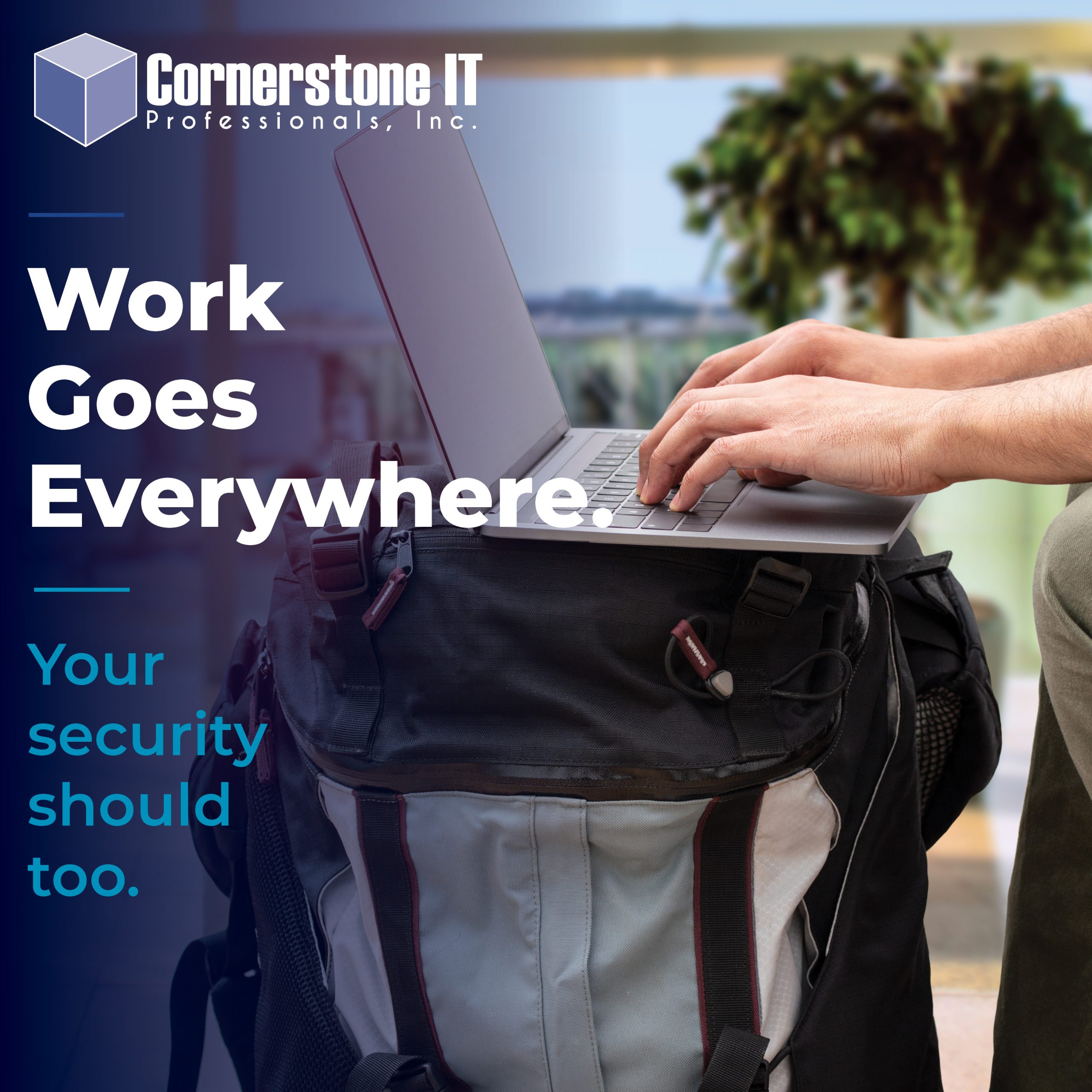
Remote work has changed what the traditional office looks like—and how businesses need to secure company laptops. Your employees may be working from home, another state, or even another country, but wherever they log in, their company laptop is still connecting to your business, your systems, and your data.
That flexibility can be great for productivity, but it also means your devices are operating outside the controlled environment of your office. Home networks, shared spaces, travel, delayed updates, and even a laptop left unlocked for a few minutes can create security gaps that are easy to overlook.
The good news? You don’t need to make every remote employee a cybersecurity expert to secure company laptops. With the right protections in place—and a few clear expectations for employees—you can reduce many of the most common risks without making remote work harder.
Why Remote Work Changes the Security Environment
A company laptop doesn’t suddenly become less secure when it leaves the office. But the environment around it changes.
Inside the office, your business has more control. You can manage the network, limit physical access, standardize security settings, and know—or at least have a pretty good idea—where company devices are being used.
Remote employees introduce more variables.
A laptop may connect through a home network, hotel Wi-Fi, or another network your business doesn’t control. It may travel between locations, be left unattended, or be used in a space where other people are nearby. And when an employee is hundreds—or thousands—of miles away, your IT team can’t simply walk over to their desk when something doesn’t look right.
That’s why securing remote laptops requires more than installing antivirus software and sending the employee on their way. Physical security, device management, network security, access controls, and employee habits all become part of the equation.
CISA recommends keeping devices physically secure, limiting who can access them, and locking them whenever they’re unattended. Those precautions become even more important when company equipment regularly operates outside the office.
Cornerstone IT Tip
Make Security the Default
Don’t rely on remote employees to create their own security standards. Company-owned laptops should be configured with your security requirements before they leave your control. The more protections you can manage centrally, the less your security depends on someone remembering to do the right thing.
How to Secure Company Laptops: The Remote Work Checklist
Whether you have one employee working remotely or an entire team spread across multiple locations, company laptops should follow the same basic security standards.
Use this checklist as a starting point to secure company laptops outside the office. Some protections can—and should—be managed centrally by your IT team, while others require employees to understand their role in keeping company equipment and data secure.
1. Lock the Screen Every Time You Step Away
It only takes a minute.
An employee steps away to answer the door, grab lunch, take a phone call, or talk to someone nearby, leaving an unlocked laptop behind.
Set company laptops to automatically lock after a short period of inactivity, but don’t rely on the timer alone. Employees should also get into the habit of manually locking their screens whenever they step away.
It takes seconds and prevents someone else from having immediate access to an already authenticated company device.
2. Treat the Laptop Like Company Property—Because It Is
Remote work can make a company laptop feel like part of the furniture. It isn’t.
When the workday ends, laptops should be stored somewhere secure—not left on a kitchen counter, couch, patio table, or anywhere they’re easily accessible to someone else.
And a car isn’t secure storage either. A laptop tucked under a seat or hidden in the trunk can still disappear along with everything stored on it or accessible through it.
Employees should know that protecting the physical device is part of protecting company data.
3. Keep Company Laptops for Company Use
A work laptop shouldn’t become the household’s backup computer.
Even a well-intentioned family member who only wants to “check something really quick” can accidentally download software, install a browser extension, click a malicious link, change a setting, or access information they were never meant to see.
Company devices should be used only by the employees they’re assigned to. Make that expectation part of your remote work policy rather than assuming everyone already knows it.
4. Require Strong Sign-Ins and MFA
A strong password is important, but it shouldn’t be the only thing standing between an attacker and your business.
Company accounts should use long, unique passwords or passphrases, and multifactor authentication (MFA) should be required wherever possible. MFA adds another layer of protection by requiring something beyond a password to verify the person logging in.
Passwords can be stolen through phishing, reused across accounts, or exposed in a data breach. As we explain in Why Passwords Are Your Business’s Weakest Point, relying on passwords alone can leave businesses unnecessarily exposed. MFA helps keep a stolen password from becoming an open door into your business.
5. Retire Devices That Can No Longer Be Secured
Just because an old laptop still turns on doesn’t mean it still belongs in your business.
Operating systems and software eventually reach end of support. Once a device can no longer receive important security updates, continuing to use it for business creates unnecessary risk.
We’ve covered the dangers of running outdated software before, and the same principle applies to remote devices: if a laptop can’t be properly supported and secured, it shouldn’t quietly remain connected to company systems.
This became especially important when Microsoft ended support for Windows 10 in October 2025. Businesses still relying on unsupported devices need a plan to upgrade, replace, or otherwise properly manage them rather than assuming they’re safe simply because they still work.
6. Keep Devices Patched and Updated
Those update notifications aren’t just there to interrupt the workday.
Software updates frequently include fixes for known security vulnerabilities. The longer important updates are delayed, the longer those vulnerabilities remain available for attackers to exploit.
Whenever possible, updates on company laptops should be centrally managed and automatically deployed rather than left entirely up to individual employees.
This is another place where good security shouldn’t depend on someone remembering to click “Update” at the right time.
7. Make Network Security Part of the Conversation
Your business may control the laptop, but you probably don’t control every network it connects to.
Remote employees may work from home, hotels, coworking spaces, client locations, or other places where your company has little or no control over the Wi-Fi. That makes it important to establish clear expectations about which networks are appropriate for company devices.
At home, employees should use a secured Wi-Fi network with a strong password, current encryption, updated router firmware, and default administrator credentials that have been changed. CISA recommends securing the router and enabling basic protections before connecting devices to the internet.
Public Wi-Fi deserves additional caution. Employees should understand your company’s requirements for connecting outside their home or office, including whether they should use a company-approved VPN or another secure connection method.
8. Keep Firewalls and Security Tools Running
Security software can’t protect a laptop if it’s been disabled.
Company devices should have properly configured firewalls, antivirus or endpoint protection, and any monitoring or security tools required by your business. Those protections should remain active whether the employee is sitting inside your office or working thousands of miles away.
Whenever possible, employees shouldn’t have the ability to casually disable or remove company security tools.
And if a security tool is getting in the way of someone’s work, address the problem rather than turning off the protection.
9. Limit Unnecessary Software
Every application installed on a company laptop creates something else that needs to be maintained, updated, and secured.
Remote company devices shouldn’t become collections of random applications, browser extensions, utilities, games, and free software downloaded from across the internet.
Establish which applications employees are permitted to install and, when possible, limit installation privileges to approved users or your IT provider. Removing unnecessary software reduces the number of potential vulnerabilities and makes company devices easier to manage.
The fewer unknowns on a laptop, the easier it is to keep that laptop secure.
10. Keep Business Data in Business Systems
A company laptop may be sitting outside the office, but company data shouldn’t wander along with it.
Employees should save business files only in company-approved storage and systems—not personal cloud accounts, personal email, USB drives, or whatever happens to be most convenient at the moment.
Approved business systems allow your company to control access, maintain backups, apply security policies, and recover information if something goes wrong. They also make it much easier to remove access when an employee leaves the company or a device is lost or stolen.
Make sure remote employees know not only where company data belongs, but also where it doesn’t.
11. Be Wary of Unexpected Links, Attachments, and Requests
Remote employees don’t always have the luxury of leaning over to the person at the next desk and asking, “Did you really send me this?”
Attackers know that.
An unexpected invoice, password reset, document request, payment change, or urgent message from “the boss” can look completely legitimate—especially now that attackers have more sophisticated tools for making fraudulent messages convincing.
As we discussed in Hackers Don’t Need to Break In If Someone Holds the Door Open, technology can provide layers of protection, but everyday employee habits still play an important role in keeping a business secure.
Teach employees to slow down when a message creates urgency or asks them to click, download, provide credentials, send sensitive information, or change a payment. When something doesn’t feel right, verify the request through a separate, trusted method before taking action.
12. Control Which Devices Can Access Company Systems
Having the correct username and password shouldn’t automatically mean a device gets access to your business.
Companies with remote employees should know which devices are connecting to their systems and, where appropriate, require those devices to meet established security standards before access is granted.
That might include checking whether the device is company-approved, properly updated, encrypted, protected by required security tools, and compliant with company policies.
This approach is part of the broader Zero Trust security model: don’t automatically trust a login simply because the credentials are correct. Verify the user, evaluate the device, and grant only the access that’s actually needed.
For a remote workforce, that additional layer of control can make the difference between a stolen password and a much larger security incident.
Cornerstone IT Tip
Manage the Device, Not Just the User
Remote security isn’t only about teaching employees what not to click. The strongest protections happen behind the scenes—managed updates, endpoint protection, access controls, approved applications, backups, and device monitoring. When those safeguards are centrally managed, one employee mistake is less likely to become a company-wide problem.
Is Your Remote Workforce Really Secure?
Securing remote work shouldn’t depend on every employee remembering a long list of cybersecurity rules every day.
The strongest approach is to build those protections into the way your company’s technology is managed. Automatic screen locks, MFA, managed updates, endpoint protection, approved applications, secure business storage, and access controls can all help reduce risk before an employee ever has to make a security decision.
That doesn’t mean employee habits don’t matter. They absolutely do. But when strong security practices and properly managed technology work together, your business is in a much better position to support remote employees without sacrificing security.
At Cornerstone IT Professionals, we help businesses secure company laptops and manage technology wherever their employees are working. If you’re not sure whether your remote devices have the right protections in place, we can help identify the gaps and create a consistent security standard across your team.
Contact Cornerstone IT Professionals to make sure your remote employees can work securely—wherever work happens.